DOTDASH.SPACE
SimCom X Firewall Guide
SIMCOM X · SUPPORT
Windows Defender Firewall setup for SimCom X.
Port forwarding and firewalls can cause issues and confusion. These instructions show how to remove the SimCom X Server from Windows Defender Firewall and then add it again if you are not sure the exception was created correctly.
Router help: PortForward.com has instructions for forwarding ports on many specific routers.
How to remove SimCom X from Windows Defender Firewall
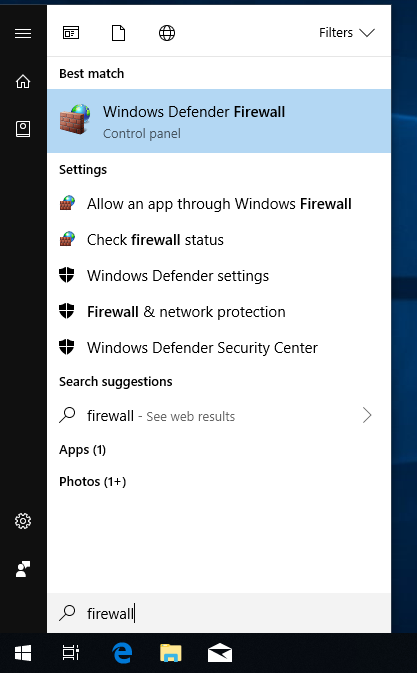
- Open Windows Defender Firewall.
- Select Allow an app or feature through Windows Defender Firewall.

- Click Change settings.
- Select simcom_x server.
- Click Remove.

- Double-check that the application you are removing is correct, then click Yes.

- Start SimCom X again. It will ask whether you want to add an exception to Windows Defender Firewall.
- Select the appropriate network checkboxes and click Allow access.

Job done. If you still cannot connect after allowing SimCom X through the firewall, visit the support forum for help.